
jpg2excel.app
Images to Excel
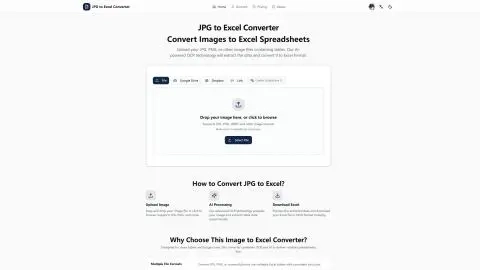
Convert table images into editable Excel spreadsheets via OCR and AI, then download XLSX, XLS, or UTF-8 CSV for quick cleanup.
Listing signals
Domain rating
11
Domain rating is Ahrefs' measure of domain quality according to links.
Popularity
Low
Page views, clicks to the site and upvotes in the last 30 days, ranked against every live listing.
About tool
JPG2EXCEL is a free online JPG/JPEG to Excel converter for turning table images into editable spreadsheet data. Upload a table photo or screenshot, preview the extracted rows and columns, and download your result as XLSX, XLS, or UTF-8 CSV.
The converter uses OCR and AI to detect table structure—headers, numbers, rows, and columns—so you get spreadsheet cells rather than a flat image. This makes it useful when you need to reduce manual data entry from invoices, receipts, inventory lists, and tabular report screenshots.
For best results, use clear, straight-on images with readable text and grid lines. If the table is blurry, skewed, low-resolution, or split across multiple images, some merged cells or header layout may require manual cleanup after export. Review important values like amounts, dates, and identifiers before using the spreadsheet for production work.
What kinds of images can I convert with JPG2EXCEL?
Upload JPG/JPEG tables and also supported scanned or screenshot formats like PNG, BMP, TIF, and TIFF. The tool is intended for tables (not plain text screens).
What download formats are available after conversion?
You can download editable XLSX and XLS files, plus a UTF-8 CSV copy for simpler imports and workflows.
Does the output become editable spreadsheet cells or remain an image?
The result is editable spreadsheet cell data created from detected table rows and columns. You can open it in Excel or compatible spreadsheet software and then filter and clean as needed.
Why might some cells be incorrect after OCR?
OCR accuracy depends on image clarity. Blurry numbers, glare, shadows, low resolution, angled tables, dense handwriting, or notes mixed into the table can reduce recognition and require manual cleanup.
Can I use a photo of an invoice or receipt table and get an Excel-ready result?
Yes—upload a clear photo or screenshot that shows the table. After conversion, review key values like amounts, dates, and IDs before relying on the spreadsheet.
Will the converted Excel preserve the exact original formatting (colors and fonts)?
The focus is on editable cell data with table structure retained closely. Some layouts—like merged cells, wrapped headers, or unusual formatting—may still need manual adjustments after export.